Which ads are driving purchases? What changed this week? What should you investigate next? Facebook ad analytics answers those questions, but only when your report shows the right data in the right order.
Facebook ad tracking changed a lot after the iOS 14.5 privacy changes, which limited what advertisers can track. As a result, the revenue Meta reports rarely matches other sources exactly, so you need to know what each number and metric can and cannot tell you.
This guide covers which metrics to track, how to set up tracking, and how to turn the numbers into optimization decisions.
What is Facebook ad analytics?
Facebook ad analytics is how you measure and interpret your paid Meta campaigns. It uses delivery, engagement, conversion, and attribution data to show what you spend, who saw your ads, what people did next, and how much revenue Meta credits to each ad.
Across Facebook and Instagram, that data doesn’t live in a single tool. Facebook ad analytics, also called Meta ads analytics, combines the metrics, reports, and methods used to evaluate Facebook advertising campaign performance.
The primary tool for Facebook ads reporting is Meta Ads Manager (formerly Facebook Ads Manager), which is where you create, manage, and analyze your Facebook and Instagram campaigns. It has hundreds of metrics and reports.
Ads Manager isn’t Page Insights, which reports organic Page activity. It also isn’t the standalone Facebook Analytics product, which Meta retired. Independent measurement, such as GA4 or a cross-channel platform, is a separate source that you compare against Ads Manager.
Within Ads Manager, key components of Facebook ad analytics include:
- Performance metrics like click-through rate (CTR), cost per click (CPC), and return on ad spend (ROAS)
- Engagement metrics such as likes, comments, shares, and video watch time
- Conversion tracking through the Meta Pixel and Conversions API
- Audience insights and demographic breakdowns
- Attribution reporting across different touchpoints
These Facebook advertising analytics inform decisions about budget allocation, audience targeting, creative optimization, and overall campaign strategy.
Which Facebook ads metrics should you track?
Meta Ads Manager has hundreds of metrics, which can make it hard to focus on what matters most. For sales reporting, start with amount spent, purchases, purchase conversion value, cost per purchase (CPA), and purchase ROAS. Then add delivery and traffic metrics to explain why those numbers moved.
The table below shows what each metric in your Facebook advertising data measures, how to calculate it, and why it matters.
| Metric | What it measures | How to calculate | Decision it supports | Why it matters |
|---|---|---|---|---|
| Amount spent, purchases, purchase value | Money spent, purchase events, and revenue Meta credits to ads in the period | Read three Ads Manager fields: Amount spent, Purchases, and Purchase conversion value | Check pacing and whether ads drive sales | These three numbers feed CPA and ROAS. They depend on the attribution window, so late conversions change recent days. |
| Cost per acquisition (CPA) | The average cost to acquire a customer or complete a specific action | CPA = Total ad spend ÷ number of conversions. Ads Manager field: cost per purchase | Decide whether your advertising costs are sustainable relative to customer value | CPA shows what each conversion costs you, so you can compare it with what a customer is worth. |
| Return on ad spend (ROAS) | The revenue generated for each dollar spent on advertising | ROAS = Revenue from ads ÷ ad spend. Purchase ROAS = purchase conversion value ÷ amount spent | Compare with your break-even ROAS | ROAS ties ad spend directly to business results. |
| Conversion rate | The percentage of clicks that result in a desired action (purchase, sign up, etc.) | Conversion rate = (Conversions ÷ clicks) x 100 | Judge how well your landing pages and offers convert traffic | This metric shows how effectively your landing pages and offers convert traffic into customers. |
| Click-through rate (CTR) | The percentage of people who clicked your ad after seeing it | CTR = (Clicks ÷ Impressions) x 100 | Decide whether the ad earns clicks from your target audience | It indicates how engaging and relevant your ad is to your target audience. A higher CTR signals strong alignment between your ad content, design, and audience interests. |
| Cost per click (CPC) | The average amount you pay each time someone clicks on your ad | CPC = Total Ad Spend ÷ Total Clicks | Judge the cost efficiency of driving traffic to your website or landing page | It helps you understand how cost-efficiently you drive traffic to your website or landing page. |
| Impressions | The total number of times your ad was displayed | Read the impressions field | Check the volume behind every rate | mpressions can help you understand your campaign's potential reach and whether you’re reaching enough people to achieve your goals. |
| Cost per mille (CPM) | The cost per 1,000 impressions | CPM = Amount spent ÷ impressions × 1,000 | Evaluate the cost efficiency of reaching your target audience and spot auction competition | CPM helps evaluate the cost efficiency of reaching your target audience and can indicate auction competition levels. |
| Frequency | The average number of times each person saw your ad | Frequency = impressions ÷ reach | Get context for ad fatigue, and investigate when outcomes worsen | Frequency well above your account's usual range for that audience type can signal ad fatigue, which can lower performance and raise costs. Compare it with your own history. There's no universal cutoff. |
How to calculate hook rate and hold rate for Facebook ads
Hook rate and hold rate use the same three counts from Ads Manager: impressions, 3-second video plays, and longer views. Hook rate measures the first 3 seconds. Hold rate measures how many of those viewers keep watching.
Hook rate Facebook ads formula
How you check hook rate in Facebook ads is by calculating:
(3-Second Video Plays / Impressions) x 100
Hook rate shows how well your video creative captures attention in the feed.
Testing a new opening can help if you’re seeing low hook rates. Here’s how to improve your hook rate without guessing: change only the first 3 seconds, such as the opening frame or the first line. Keep the rest of the video, the format, and the placement the same, so you know the new opening caused any change.
Hold rate formula for Facebook ads
The hold rate formula for Facebook ads is:
(15-Second Video Plays / 3-Second Video Plays) x 100
It shows how many people who watched 3 seconds of your video kept watching. The hold rate formula changes with the numerator you pick. Choose ThruPlays or 15-second plays, label it in every report, and don’t mix them. A ThruPlay counts a play to completion or of at least 15 seconds. A ThruPlay-based hold rate isn’t the same as a fixed 15-second view rate.
Example:
Imagine two video ads of the same length and format, running in the same placement. Each ad is shown 10,000 times. Here’s how each ad scores:
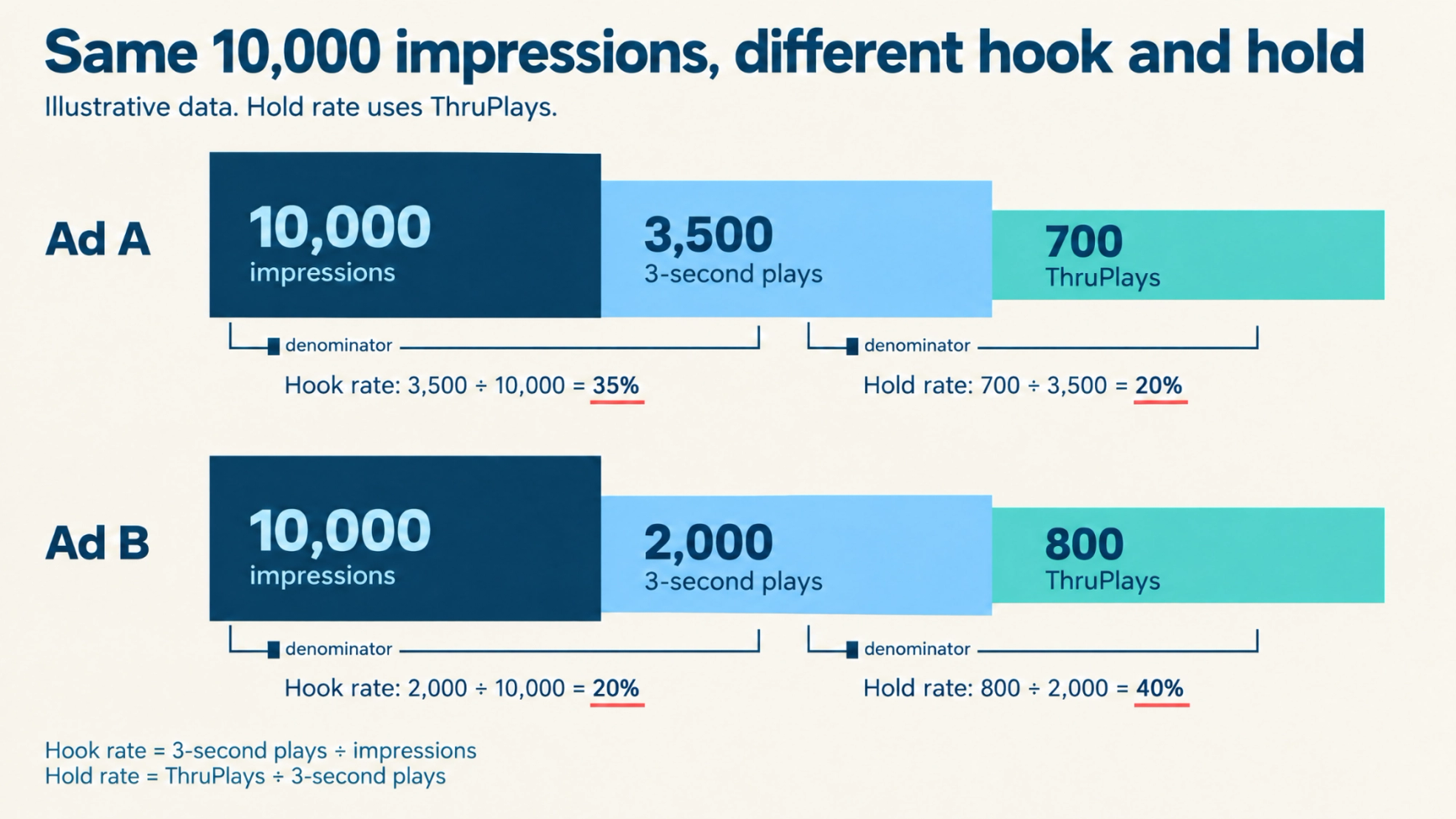
Ad A has a stronger hook, but most viewers leave early. Keep its opening and test the middle. Ad B has the weaker hook, but most people who start watching keep watching. Test a new opening for Ad B.
Ad B also reaches longer views on the same impressions: 800 against 700. Hook rate alone would favor Ad A. Check outbound CTR and cost per purchase before you pick a winner.
What do changes in Facebook ad metrics tell you?
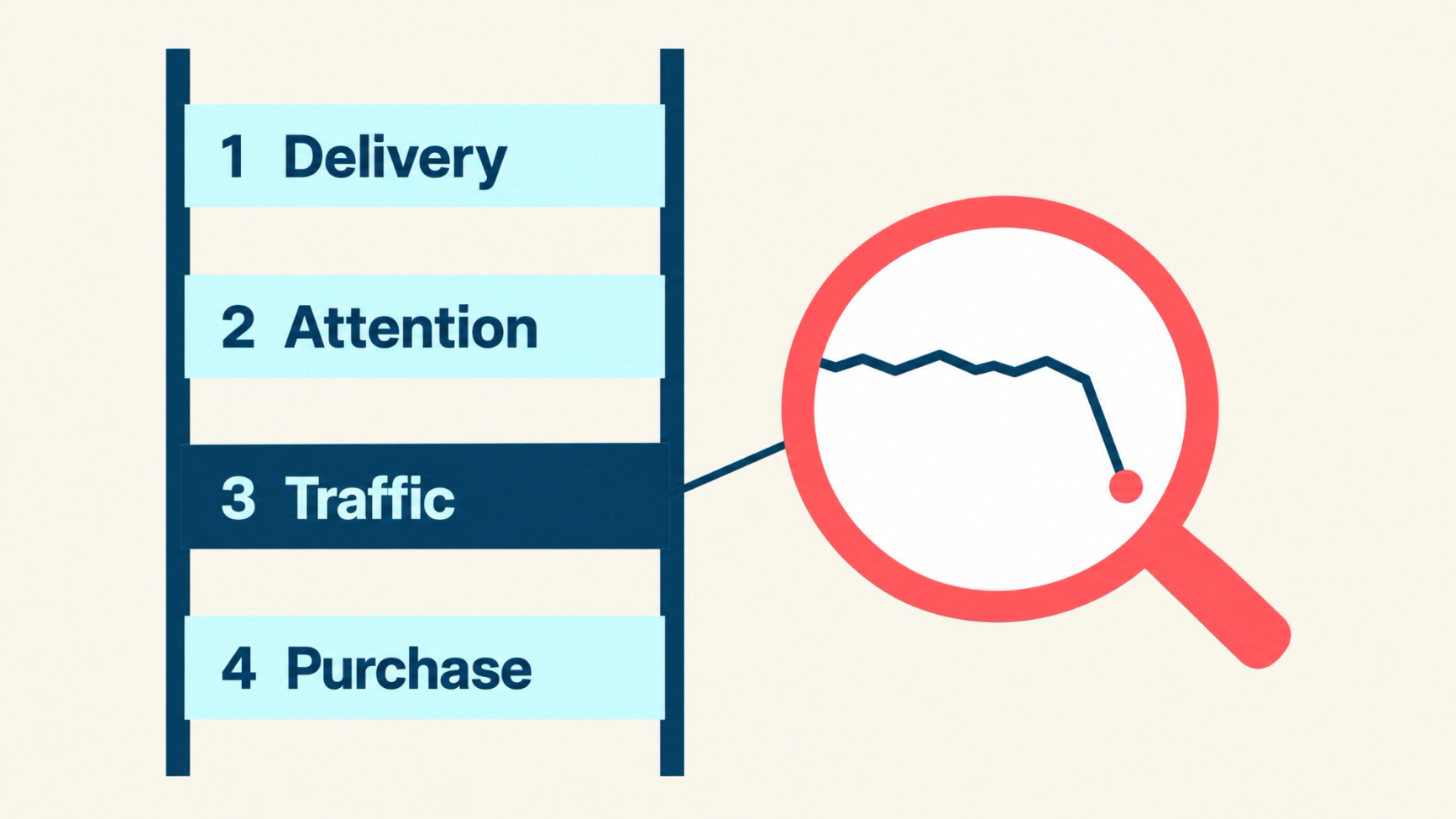
When a metric moves, it tells you where to look, not why. Cost per purchase can jump for four very different reasons, and each one needs a different fix.
- Delivery: CPM and frequency (who sees the ad, and what it costs)
- Attention: hook rate (whether people stop scrolling)
- Traffic: outbound CTR and CPC (whether they click)
- Purchase: conversion rate, cost per purchase, and ROAS (whether they buy)
Start with the business result, such as cost per purchase. Then find the first layer where a number moved. Check that layer before you touch the ad, the budget, or the page, because fixing the wrong layer wastes spend.
The six scenarios below follow one pattern: symptom, possible explanations, next check, and the evidence that would justify action.
Delivery costs change
- Symptom: CPM rises while outbound CTR and landing-page conversion rate stay similar.
- Possible explanations: More auction competition, a shift in placement mix, a narrower audience, or a seasonal period.
- Next check: Break CPM down by placement and by day. Compare the same weekdays.
- Evidence for action: Cost per purchase rises within comparable placements and stays higher for more than a few days.
Example: Last week CPM was $18, outbound CTR was 1.2%, and 2.5% of clicks bought. Cost per purchase = $18 ÷ (1,000 × 1.2% × 2.5%) = $60. This week, CPM is $24, and both rates remain the same. Cost per purchase = $80. CPM alone explains the rise.
Attention or traffic weakens
- Symptom: Hook rate or outbound CTR falls.
- Possible explanations: Creative wear, a different format or placement mix, an audience change, or a new ad taking most of the spend.
- Next check: Compare ads of the same format and placement side by side at the ad level.
- Evidence for action: The drop holds across comparable ads and cost per purchase moves with it. Don’t pause an ad on engagement alone.
Example: You compare two ads of the same format and placement at the ad level. Ad B has the lower hook rate, but hook rate isn’t the business result. Read it next to outbound CTR and cost per purchase:
| Ad (illustrative) | Hook rate | Outbound CTR | Cost per purchase |
|---|---|---|---|
| Ad A | 32% | 1.4% | $55 |
| Ad B | 24% | 1.3% | $54 |
Ad B has the weaker hook but the same cost per purchase. Keep it running and watch it.
Clicks rise, but purchases lag
- Symptom: Outbound clicks rise, and purchases stay flat.
- Possible explanations: Lower-intent traffic, a slow landing page, a weak offer match, checkout friction, or a tracking gap.
- Next check: Compare outbound clicks with landing-page sessions in GA4. Then calculate landing-page conversion rate as purchases ÷ sessions, and review the page and checkout steps.
- Evidence for action: If sessions match clicks but conversion falls, fix the page or offer. If sessions are far below clicks, check load speed and tracking.
Test plan: Send the same ad set to the current page and to one variant for two weeks. Compare purchases ÷ sessions for each.
ROAS looks healthy, but economics don’t
- Symptom: Purchase ROAS looks strong, but the business isn’t making money.
- Possible explanations: Refunds, discounts, low contribution margin, or mostly returning customers.
- Next check: Compare attributed revenue with contribution margin, refunds, and the mix of new vs. returning customers.
- Evidence for action: Net ROAS falls below your break-even ROAS.
Example: You spend $10,000 and Meta credits $30,000, so ROAS is 3.0. Refunds are 10%, so net revenue is $27,000 and net ROAS is 2.7. Contribution margin is 40% after discounts, product cost, shipping, and fees, so break-even ROAS is 1 ÷ 0.40 = 2.5. Contribution is $27,000 × 40% = $10,800, minus $10,000 of ad spend = $800. A 3.0 ROAS leaves almost no profit.
Meta and GA4 disagree
- Symptom: Ads Manager reports more purchases than GA4 for the same campaigns and dates.
- Possible explanations: The two tools count in different ways. Meta can credit a purchase to someone who only viewed an ad, and it uses its own attribution window. GA4 counts sessions from tagged visits. Time zones, event definitions, missing UTM tags, and duplicate events also create gaps.
- Next check: Make the two reports use the same settings before you compare totals. Use the checklist below.
- Evidence for action: After you align the settings, the gap stays stable, and you can explain it. A gap that suddenly widens points to a tracking problem. Check your Facebook ad tracking: the Pixel, the Conversions API, and your UTM tags.
Work through this checklist in order. Each step removes one common cause of a gap:
- Match the period and the time zone.
- Match the event definition: Meta purchases against GA4 purchase events.
- Match the attribution window. See Facebook attribution for windows and view-through differences.
- Remove view-through credit from the comparison. Meta can credit a purchase to someone who only viewed the ad. GA4 doesn’t record that as a session.
- Allow for modeled and delayed data. Compare completed days, not today.
- Check that every ad has UTM tags. Without them, GA4 may file the visit under the wrong source.
- Check for duplicate events. A Pixel event and a Conversions API event for the same order must share an event ID.
Be prepared for totals to not match exactly. The goal is to explain the gap.
Example: Meta reports 120 purchases for last week, and GA4 reports 90. After you match the time zone and remove view-through credit, Meta shows 100. The remaining 10-purchase gap is about the same each week, so you can explain it and keep reporting. If the gap jumped to 40 purchases in one week, check tracking first.
Frequency rises
- Symptom: Frequency climbs for an audience or placement.
- Possible explanations: A small audience, a large budget for that audience, or creative that has run for a long time.
- Next check: Compare outcomes for the same audience and placement over time.
- Evidence for action: Cost per purchase or outbound CTR worsens as frequency climbs. Set an investigation trigger from your own account history. Treat frequency as context.
Once you know which layer moved, you need a report that shows it. The next section explains how to track Facebook ad performance with one saved report.
How to track Facebook ad performance
Tracking Meta ads performance starts with one saved report in Ads Manager. Use these steps to access and customize your reporting.
Using Meta Ads Manager (Native approach)
Meta Ads Manager is where Meta reports your Facebook advertising data, so it’s the first place to build a report. This is the native approach: you work in Meta's own reporting and don’t need any other tools. Ads Manager shows delivery, clicks, and purchases for each campaign, ad set, and ad.
You can also save the columns, date range, and attribution setting you use, so every report is built the same way. It reports what Meta recorded under its own attribution settings, so compare it with your store orders and GA4 before you act on a number. The steps below set up one reusable view.
Accessing Meta Ads Manager:
- Log in to your Facebook Business account
- Navigate to Meta Ads Manager from the main menu
- Select the campaign, ad set, or ad level you want to analyze (campaigns for objective and budget, ad sets for audience and placement, and ads for creative)
Customizing your view:
- Click on the "Columns" dropdown in the reporting interface
- Select "Performance and Clicks" for basic metrics
- Choose "Customize Columns" to add specific fields: purchases, purchase conversion value, purchase ROAS, outbound clicks, 3-second video plays, and ThruPlays
- Save custom column sets for consistent reporting
- Set the date range. Compare equal periods, such as the last 7 days against the 7 days before
- Check the attribution setting and write it down. Compare reports only with others that use the same window.
- Export the view or schedule it from the reporting menu
Ad breakdowns:
Breakdowns split the same report so you can compare performance by:
- Demographics (age, gender, location)
- Placement (Facebook feed, Instagram stories, etc.)
- Time (day of week, hour of day)
- Device type (mobile, desktop)
How to connect Facebook ads to Google Analytics
To connect Facebook ads to Google Analytics, tag every ad URL with UTM parameters. Meta offers suggested UTM parameters when you build an ad. Proper UTM tagging makes your traffic sources identifiable in Google Analytics.
Add the parameters in each ad’s Tracking section, in the URL parameters field, so they reach the ad level. Meta’s dynamic parameters fill in the campaign, ad set, and ad names for you. GA4 records clicked sessions only, so it won’t show Meta view-through conversions.
Set up GA4 to read your Facebook ad traffic
- Match the time zone and currency. In GA4, open Admin, then Property details. Set the reporting time zone and currency to match your Meta ad account.
- Tag every ad URL with the UTM parameters above. Use the same values on every ad.
- Check the purchase event. In GA4, open Admin, then Data display, then Events. Confirm purchase is a key event. Your store must also send transaction_id, value, and currency.
- Find your Meta traffic. Open Reports, then Acquisition, then Traffic acquisition. Change the primary dimension to Session source/medium. Look for a facebook / paid_social row. If it’s missing, check the UTM values from step 2.
- Compare GA4 with Meta for the same dates. Use the click-only steps in the "Compare Meta with Google Analytics fairly" section.
How to validate tracking in Facebook Ad analytics
Facebook ad tracking has three parts. The Meta Pixel and the Conversions API collect events. UTM parameters label each click's source. Attribution decides which ad gets credit. Keep them separate when you troubleshoot.
Meta Pixel and Conversions API
The Meta Pixel collects events in the browser. The Conversions API sends events from your server. Together, they give Meta more complete purchase data, but neither is perfect, and privacy and consent rules still apply.
Use this tracking-quality checklist to validate your Meta Conversions API setup:
- Place a test purchase.
- Confirm the purchase event arrives with the right value and currency.
- Confirm the Pixel and server events share an event ID, so Meta can deduplicate them.
- Confirm the order appears in your store and in GA4.
Compare Meta with Google Analytics
To compare Facebook and Google Analytics more fairly, use a click-only window in Facebook attribution settings. Meta can also credit view-through conversions, which Google Analytics doesn’t record as sessions. The totals will still differ.
When should you add cross-channel analytics for Meta Ads?
Meta Ads Manager gives you detailed analytics for Meta delivery and results, but it reports only what Meta can see, so Facebook advertising data alone can't show what other channels contributed. GA4 and Triple Whale answer different questions.
Which tool answers which question?
| Tool | Best for | Prerequisites | Settings to check | Limits |
|---|---|---|---|---|
| Meta Ads Manager | Delivery, spend, platform-attributed results, and optimization context | Ad account access; Pixel and Conversions API events | Attribution window, date range, and columns | Credits Meta only, using Meta’s attribution rules |
| GA4 | Site traffic and on-site conversion analytics | GA4 property with purchase events; UTM tags on every ad | Source and medium, time zone and key events | Counts sessions and applies GA4’s own credit rules. Consent settings affect what it records. |
| Triple Whale | Connected commerce data and cross-channel attribution: Meta alongside store orders and other channels | Connected Meta ad account and store | Attribution model, attribution window, date range | Every attribution tool assigns credit by its own rules, so its totals will often differ from Meta and GA4. |
How Triple Whale works with your Facebook ad data
Triple Whale connects directly to your Meta Ads Manager account and imports your campaign data. The platform combines Facebook ad data with other marketing channels so you can compare channels under one set of rules.
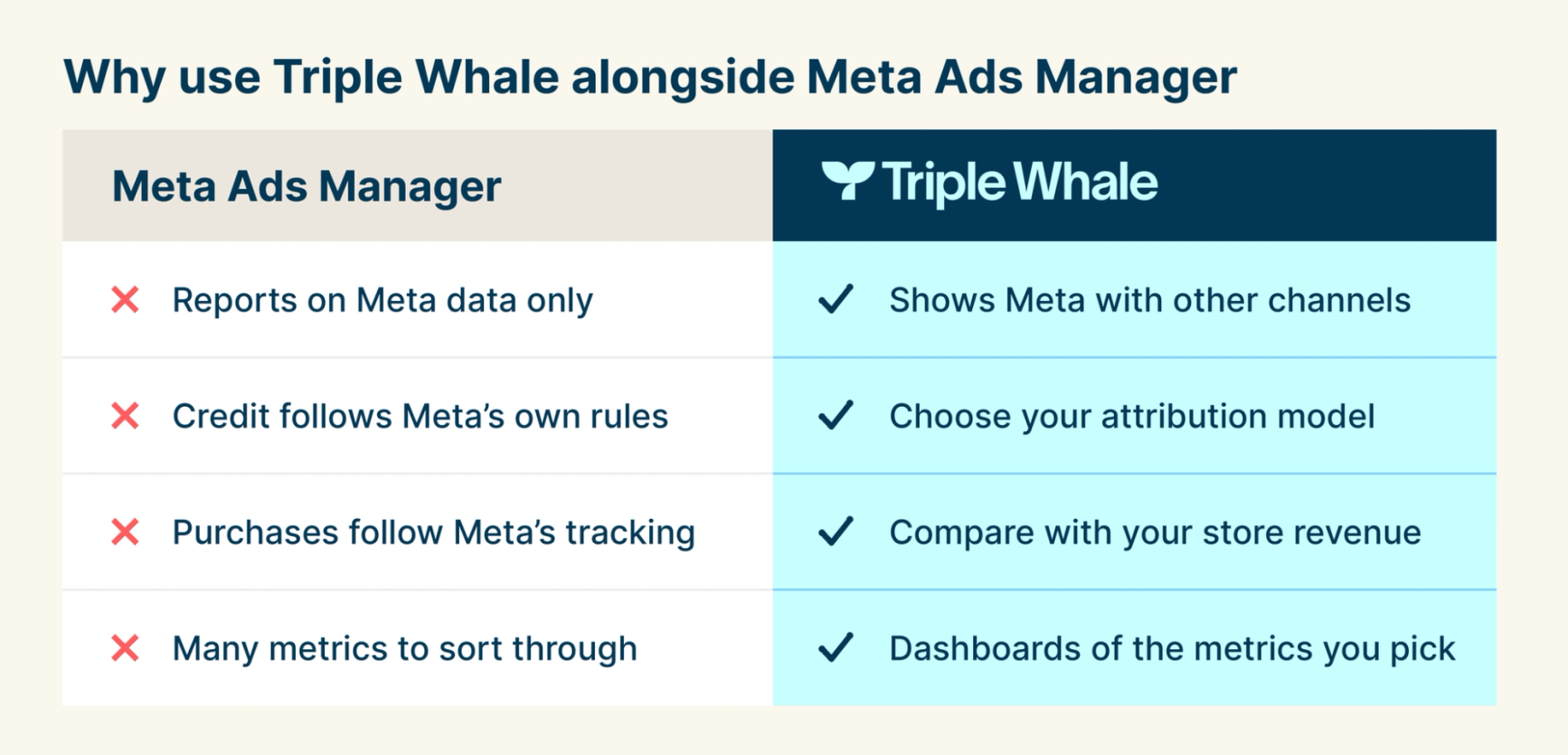
What Triple Whale adds
- Triple Attribution + Platform Views model that combines click-attributed conversions with platform-reported view-through conversions
- Custom dashboard creation focused on metrics that matter to your business
- Automated anomaly detection alerts you to performance changes
- Industry benchmark comparisons show how your campaigns stack up
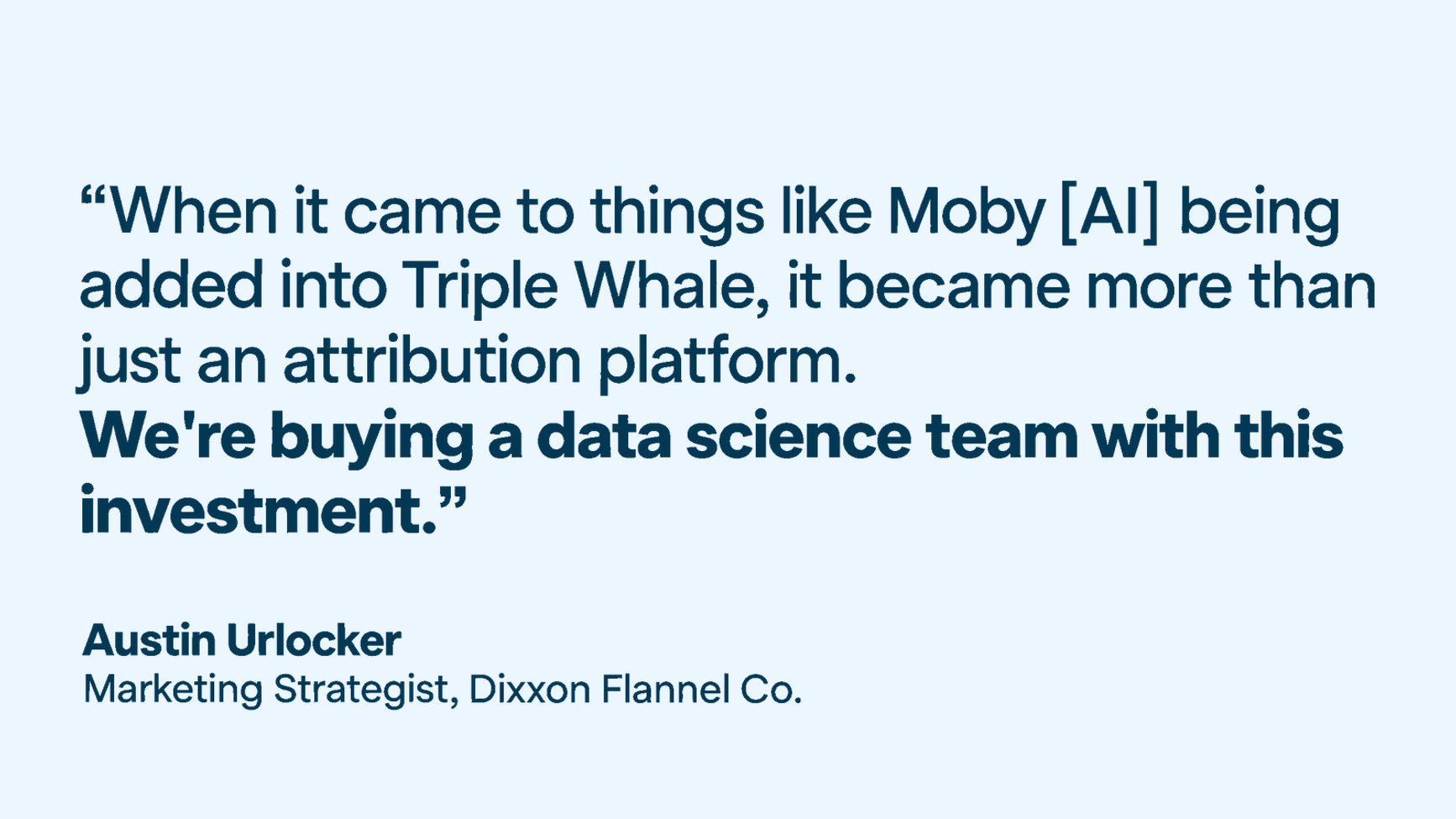
- Moby, Triple Whale's AI assistant, lets you ask for ad metrics such as CPA, CTR, CVR, and CPM by campaign and day in plain language, then revisit past questions in its history tab
A weekly Facebook ads analysis workflow
Follow these six steps each week to turn your Meta ad analytics into a next action.
- Define the business target.
- Confirm tracking and settings.
- Compare meaningful periods.
- Separate campaign, creative, and placement changes.
- Identify the next test.
- Record the finding and a review date.
Reporting and analysis frequency
Daily monitoring:
- Check for any significant performance drops or spikes
- Monitor frequency levels for sustained outcome drops
- Review automated rules, pacing, and technical alerts
Weekly analysis:
- Analyze performance trends across key metrics
- Identify top-performing creative and audience combinations
- Adjust budgets based on performance data, and run the diagnosis scenarios above
When the weekly review keeps finding setup problems, run a Facebook ads audit.
Monthly deep dive:
- Compare performance against industry Facebook ads benchmarks for the same period and category
- Analyze customer journey and attribution data
- Plan creative refresh and audience expansion strategies, and review margin and experiments
Conversion lag, sample size, and your business cycle decide how long to wait before you act. There’s no fixed learning period.
Best practices for Facebook ads analytics
Setting up effective measurement
1. Define clear objectives
Before launching campaigns, set specific, measurable goals aligned with your business objectives. Different campaign types require different primary metrics:
- Traffic campaigns: Focus on CTR and CPC
- Lead generation: Prioritize conversion rate and cost per lead
- Sales campaigns: Emphasize ROAS and cost per acquisition
2. Implement proper attribution
To minimize discrepancies between Facebook and Google Analytics, exclude view-through conversions in Facebook attribution settings and focus on click-through conversions.
3. Use breakdowns for deeper insights
Utilize Facebook's breakdown options to analyze performance by:
- Demographics (age, gender, location)
- Placement (Facebook feed, Instagram stories, etc.)
- Time (day of week, hour of day)
- Device type (mobile, desktop)
Optimization strategies
1. Creative performance analysis. Facebook and Instagram are highly visual platforms, and the quality of your ad creative will matter more and more. Regularly analyze which creative elements drive the best performance:
- Test different video hooks and opening sequences
- Analyze which image styles generate higher CTRs
- Monitor creative fatigue through frequency and performance metrics
2. Audience refinement. Many advertisers now report better results with broad targeting using Meta's AI optimization. Consider:
- Using Custom Audiences for high-intent retargeting
- Testing Lookalike Audiences at different similarity percentages
- Leveraging Meta's Advantage+ audience features
3. Budget optimization. Monitor performance trends to inform budget allocation:
- Increase budgets for high-performing ad sets
- Pause underperforming creative variations
- Use Meta Ads Manager's option to schedule budget increases on high-traffic days
Common mistakes to avoid
- Focusing on vanity metrics. Don't prioritize metrics like reach or impressions over business-impact metrics like ROAS and conversion rate.
- Making decisions too quickly. Allow campaigns adequate time for Meta's algorithm to optimize, especially in the first 1-2 weeks when ROAS might start lower as the system learns.
- Ignoring attribution windows. Understand how different attribution windows affect your data interpretation, and stay consistent across reporting periods.
- Neglecting creative refresh. Refresh creative or expand audiences when frequency climbs well above your account’s usual range to avoid ad fatigue and declining performance.
Triple Whale can help with Facebook ad analytics
Facebook ad analytics works when you track the metrics that match your goal, confirm your tracking is accurate, and use the data to decide what to test next.
Analytics is an ongoing process, so keep monitoring your campaigns, test new approaches, and adapt to platform changes. The most important metric is the one tied to your goal, whether that's website traffic, leads, or sales.
Ready to see your Facebook advertising analytics next to the rest of your marketing? Triple Whale connects to your Meta Ads Manager account and shows your Meta results beside your store orders and other channels. You can choose your attribution model, build dashboards around the metrics you pick, and ask Moby, Triple Whale's AI assistant, questions about your ad data in plain language. Book a demo today or get started with a free account.
Meta ads analytics: FAQs
How do you automate Facebook ads reporting?
Save your column set, save the report, and schedule delivery if your account offers it. That removes the weekly rebuild. If you need Meta alongside other channels in one report, connect your data to a reporting or attribution platform.
What is a good hold rate for Meta ads?
There’s no universal good hold rate. It changes with video length, format, placement, and the numerator you use. Compare each ad with your own median for the same format and placement. Then check whether a higher hold rate comes with a lower cost per purchase.
How to pull an end date in Facebook ads reporting?
To pull a report that stops on a fixed date, set a custom date range before you export. Enter both the start date and the end date, then confirm that the end date is within the range. If the end date is today, treat the last day as partial because conversions can be reported after the day ends.
How do I know if my Facebook ad is doing well?
Judge it against the business result. For a sales goal, compare cost per purchase and purchase ROAS with your break-even targets, using the same attribution window and period each time. Use hook rate and outbound CTR to explain a result. Wait long enough for conversion lag before you decide.
How do you check hook rate in Facebook ads?
Hook rate is 3-second video plays divided by impressions. Ads Manager doesn’t have a built-in hook rate column, so you create one. Click Columns, then Customize columns, then Create custom metric. Enter 3-second video plays / Impressions, format it as a percentage, and save it. Compare each ad with your own account average, because there is no universal good hook rate.